Quick start
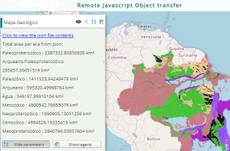
The example below, running in the Mappia calculator - click it to run it live. Full-size picture
- Run it
Click the picture: the map opens right here and runs the example. Nothing is saved, and nothing to install.
- Try it
- Read the panel: each geological era in the JSON is listed with its area, largest first.
- In
afterCalc, change the sort toareas[a] - areas[b]and run it again: the smallest era comes first. - Point
urlat your own JSON of names and numbers and run it again: the list shows your data.
- Make it yours
Copy the query, change it - the key parameters are below - and run it again in the playground, or paste it into the Mappia editor to save it as your map.
Key parameters
| Parameter | Example | What it does |
|---|---|---|
url | /theme/app/data/geologia_area.json | Where the JSON is downloaded from; relative paths resolve on the Mappia server. Write = inside a query string as \=. |
id | areas | Names the result: your callbacks read the parsed object as inputs.id["areas"]. |
cors | true | Downloads through the Mappia proxy, for servers that do not send CORS headers. |
value | inputs.id["areas"] | What the callbacks receive: the parsed JSON, an object or an array. An empty response gives []. |
content | <div id="area_list"></div> | HTML next to the tag. Give an element an id so your callback can write the result into it. |
Every parameter, with its type and default, is in the reference at the end of this page.
Complete example
The query 26 lines · runs as is
// LoadJson: downloads JSON before the layer calculates; its input value is the parsed object.
// Here, the area of each geological era, listed in the panel.
[
{
title: "Geology - area by era",
name: "CSR:geologia",
source: "calculate",
opacity: 0.8,
visibility: true,
paramsButtonConfig: [{ type: "query", pressed: true }],
descriptionHtml:
"{{loadjson|id=areas|url=/theme/app/data/geologia_area.json}}" +
'<div id="area_list" style="font-size:12px"></div>',
// afterCalc runs once the expression's values are computed, so the layer needs one
expression: function (layersVals) {
return layersVals[0];
},
afterCalc: function (inputs) {
var areas = inputs.id["areas"]; // { "Cenozóico": 4984826.16, ... } in km2
var rows = Object.keys(areas).sort(function (a, b) { return areas[b] - areas[a]; });
document.getElementById("area_list").innerHTML = rows.map(function (era) {
return "<b>" + era + "</b>: " + ExtjsUtils.NUMBER.abbreviateNumber(areas[era]) + " km²";
}).join("<br>");
},
},
];Customize it
Where you can read the object
The parsed JSON is available as inputs.id["areas"] (the id you chose) in beforeCalc, onInputsReady and afterCalc, and as this.getInputs().id["areas"] in the layer’s functions. The layer waits for the download before it calculates, so the object is always complete when you read it.
afterCalc runs only for a layer that has an expression. Without one nothing is calculated and afterCalc never runs - that is why the example has an expression that just returns layersVals[0].
What arrives
Exactly what JSON.parse makes of the file: an object or an array. JSON carries only plain data, so a date arrives as a string and there are no functions. If the server answers with an empty body, the value is [].
Write the result into the panel
Put an empty element with an id in descriptionHtml, next to the tag, and fill it from your callback. afterCalc runs again after every calculation round, so replace the content (innerHTML = ...) instead of appending to it, as the example does.
Use the data inside the calculation
expression runs in a worker, where inputs.id does not exist. The inputs reach it as a plain array in markup order, and {{loadjson}} takes a position like any other input:
descriptionHtml: "{{loadjson|id=weights|url=/data/weights.json}}",  // { "1": 0.5, "2": 2 }
expression: function (layersVals, inputs) {
  var weights = inputs[0];               // the parsed JSON, read by position
  return weights[layersVals[0]];
},
This works because parsed JSON is plain data; keep such tables small, since they are copied into the worker together with the pixel values. A {{loadcsv}} table, by contrast, is an object with methods and cannot be used there. The rules are in the execution model.
Files on other servers
If the server does not send CORS headers, add cors=true. Inside a URL, write every = as \= (\\= inside a JavaScript string), or the markup reads it as a new parameter. For a table rather than an object, use Loadcsv.