Textfield

Markup: {{textfield}}

Quick start

The example below, running in the Mappia calculator - click it to run it live. Full-size picture

  1. Run it

    Click the picture: the map opens right here and runs the example. Nothing is saved, and nothing to install.

  2. Try it
    • Replace 15 with 25: after the countdown, only the slopes steeper than 25 degrees stay orange.
    • Type abc instead: the field is flagged as not a number.
  3. Make it yours

    Copy the query, change it - the key parameters are below - and run it again in the playground, or paste it into the Mappia editor to save it as your map.

Key parameters

ParameterExampleWhat it does
idminimumNames the text: read it as inputs.id['minimum'] in beforeCalc, and by position (inputs[0] here) inside expression.
value15The starting text. The input always holds a string, so convert it with parseFloat before comparing.
isnumerictrueMarks the field invalid when the text is not a number. It only validates: the value still arrives as text.
fieldLabelMin. slope (°)Label shown at the left of the box, about 100 pixels wide: a longer text wraps.
styletext-align:right;CSS for the box, for example to right-align numbers.

Every parameter, with its type and default, is in the reference at the end of this page.

Complete example

The query 21 lines · runs as is
// Textfield: type the minimum slope. isnumeric only validates - the value is still a string.
[
  {
    title: "Slopes steeper than a typed value",
    name: "CSR:bioma_cerrado_declividade",
    source: "calculate",
    opacity: 0.9,
    visibility: true,
    paramsButtonConfig: [{ type: "query", pressed: true }],
    descriptionHtml:
      "{{textfield|id=minimum|fieldLabel=Min. slope (°)|value=15|isnumeric=true}}",
    beforeCalc: function (inputs) {
      this.setCalculateLegend([
        { color: [211, 84, 0], value: 1, title: "Steeper than " + inputs.id["minimum"] + " degrees" },
      ]);
    },
    expression: function (layersVals, inputs) {
      return layersVals[0] >= parseFloat(inputs[0]) ? 1 : this.nullValue;
    },
  },
];

Customize it

Convert the text

The value is the text exactly as typed, a string even with isnumeric. Convert it where you use it: parseFloat(inputs[0]) inside expression, or parseFloat(inputs.id["minimum"]) || 0 in beforeCalc to fall back to 0 when the field is empty.

isnumeric does not stop the user from typing letters, and invalid text still reaches the layer. parseFloat("abc") is NaN, and every comparison with NaN is false. Guard against it:

expression: function (layersVals, inputs) {
  var minimum = parseFloat(inputs[0]);
  if (isNaN(minimum)) return this.nullValue;
  return layersVals[0] >= minimum ? 1 : this.nullValue;
},

Typing and recalculation

Every keystroke counts as a change, and the layer recalculates after the usual countdown (about 2.5 seconds, shown on a button). With updateAutomatically: true on the layer there is no countdown and each keystroke starts a new calculation, so leave it off for text boxes.

For work that should run once per edit, use the afteredit event: it fires when the field loses focus with changed text. Attach it from a label placed after the field:

descriptionHtml:
  "{{textfield|id=minimum|fieldLabel=Min. slope (°)|value=15|isnumeric=true}}" +
  "{{label|id=minimum_echo|getid=minimum|getid=on_afteredit=Ext.getCmp('minimum_echo').setText('Last value: ' + this.getRawValue())}}",

From code, Ext.getCmp("minimum").on("afteredit", function (field) { ... }) does the same.

Change the text from code

Ext.getCmp("minimum").setRawValue("25") replaces the text, and getRawValue() reads it. Setting the text does not count as a change, so the layer does not recalculate. Add an InputManager to the layer and call its forceRecalc() after.

Show only your inputs

hideLegendButton: true on the layer hides its generated legend and opacity slider, so the panel shows only your descriptionHtml.

Pitfalls

  • Inside expression there is no inputs.id; read the text by position.
  • Several text fields are inputs[0], inputs[1]… in the order they appear in descriptionHtml. Labels and buttons take no position.

Real maps that use it

Simple Textfield Example

Simple Textfield Example

Simple Textfield Example

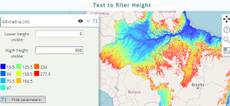
Text to filter height

Text to filter height

Economic valuation

Economic valuation

AMAZONES - Timber product

AMAZONES - Timber product

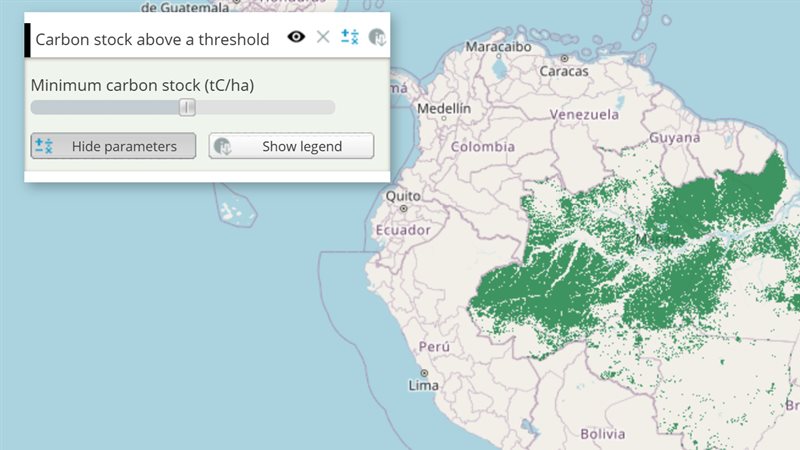
AMAZONES - Carbon stocks and CO2 emissions

AMAZONES - Carbon stocks and CO2 emissions

Reference: the parameters used here

Generated from the platform source. Every entry, searchable, is in the API reference; the raw data is api.json. Open an entry for its description, parameters and example; # links to it.

textfield · text box (input)

Textfield9 entries

Written in a layer's descriptionHtml as {{textfield|parameter=value|...}}

Tool that allows the user to input a single line of text.
Usage: '{{textfield}}'
This tool is created from Ext.form,TextField.
Only customized properties are listed here.

afteredit

Event# Event fired once the field loses focus (blur) and its text differs from the value it had when editing started; the listener receives the TextField.

Event fired once the field loses focus (blur) and its text differs from the value it had when editing started; the listener receives the TextField. Unlike keyup it fires a single time per edit, so use it for expensive reactions. Attach it with on_afteredit= through a getid= reference, or from code with Ext.getCmp(id).on('afteredit', fn).

{{textfield|id=soy_value|isnumeric}}{{label|getid=soy_value|getid=on_afteredit=console.log(this.getRawValue())}}
Ext.getCmp('soy_value').on('afteredit', function(field) { console.log(field.getRawValue()); });

fieldLabel

String# Defines the TextField label.

Defines the TextField label.

|fieldLabel = This is the field label|

getRawValue

function() : String# Returns the text currently in the field, unprocessed (this is what inputs.id[ID] holds).

Returns the text currently in the field, unprocessed (this is what inputs.id[ID] holds). Call it on the component (Ext.getCmp(id)).

Returns The raw text of the input element.

var text = Ext.getCmp('soy_value').getRawValue();

hideLabel

Boolean= false# Defines if it should completely hide the label element (label and separator) of the TextField.

Defines if it should completely hide the label element (label and separator) of the TextField. That is, if this property is set to true, the label will be hidden. Otherwise, the label will be shown by default. PS: Since the label will be shown by default, even if you do not specify a fieldLabel, the space for it will still be reserved so that the TextField will line up with other fields that do have labels. This space will be removed if you define it to be hidden.

|hideLabel = true|

id

String# Defines the id to identify the object.

Defines the id to identify the object.

|id=example_text_field|

isnumeric

boolean# Defines the TextField content as numeric only.

Defines the TextField content as numeric only.

|isnumeric=true|

setRawValue

function(value)# Replaces the text of the field from code.

Replaces the text of the field from code. It does not fire keyup, so call forceRecalc() on an InputManager (or fire the event) when the layer must be recalculated with the new text.

value String
New text for the field.
Ext.getCmp('soy_value').setRawValue('43');

style

String# Defines the TextField style properties.

Defines the TextField style properties. You can use CSS style rules to customize it.

|style = color:black;|

value

String# Defines the initial value to the TextField content.

Defines the initial value to the TextField content.

At runtime inputs.id[ID] (and inputs[i]) holds the current text exactly as typed (getRawValue(), always a string — convert it with parseFloat when isnumeric is used). The layer recalculates on every keyup (each keystroke); the widget also fires afteredit when the field loses focus with a changed value.

|value = text|
beforeCalc: function(inputs) {
    var price = parseFloat(inputs.id['soy_value']) || 0;
}

Layer properties

LayersProperties1 entry
Keys of a layer object: which map it shows (name, source, styles), how it looks (title, opacity, visibility) and how its row and panel behave.

hideLegendButton

Boolean= falseproperty# Hides the legend of the layer in its Legend Window.

Hides the legend of the layer in its Legend Window. Set it to 'true' to hide it, 'false' to display it. It applies to every layer source: on a local layer it hides the "show legend" toggle button of the row; on a calculate, file or xyz layer it hides the generated legend container (with the legend title and the opacity slider) and the "show legend" button at the bottom of the query section, so only the descriptionHtml remains.

[
  {
     title: 'Hiding the Legend Button',
     color: '#FFA500',
     elements: [
        {
           title: 'The Layer Legend Button will be hidden',
           name: 'CSR:geologia',
           source: 'calculate',
           visibility: true,
           hideLegendButton: true,
           descriptionHtml:
              '{{label|text=The legend button is hidden, only the descriptionHtml is visible}}',
        },
     ],
  },
]